
10 Common JSON Errors and How to Fix Them
Working with JSON feels like it should be simple. It is a lightweight, human-readable data format used everywhere from API responses to local configuration files. Yet, because the specification (RFC 8259) is completely unforgiving, developers spend an enormous amount of time untangling syntax exceptions.
This guide breaks down the 10 most common JSON errors developers encounter in the wild, the exact parser error messages they trigger, why parsers reject them, and how to fix them with clear before-and-after examples.
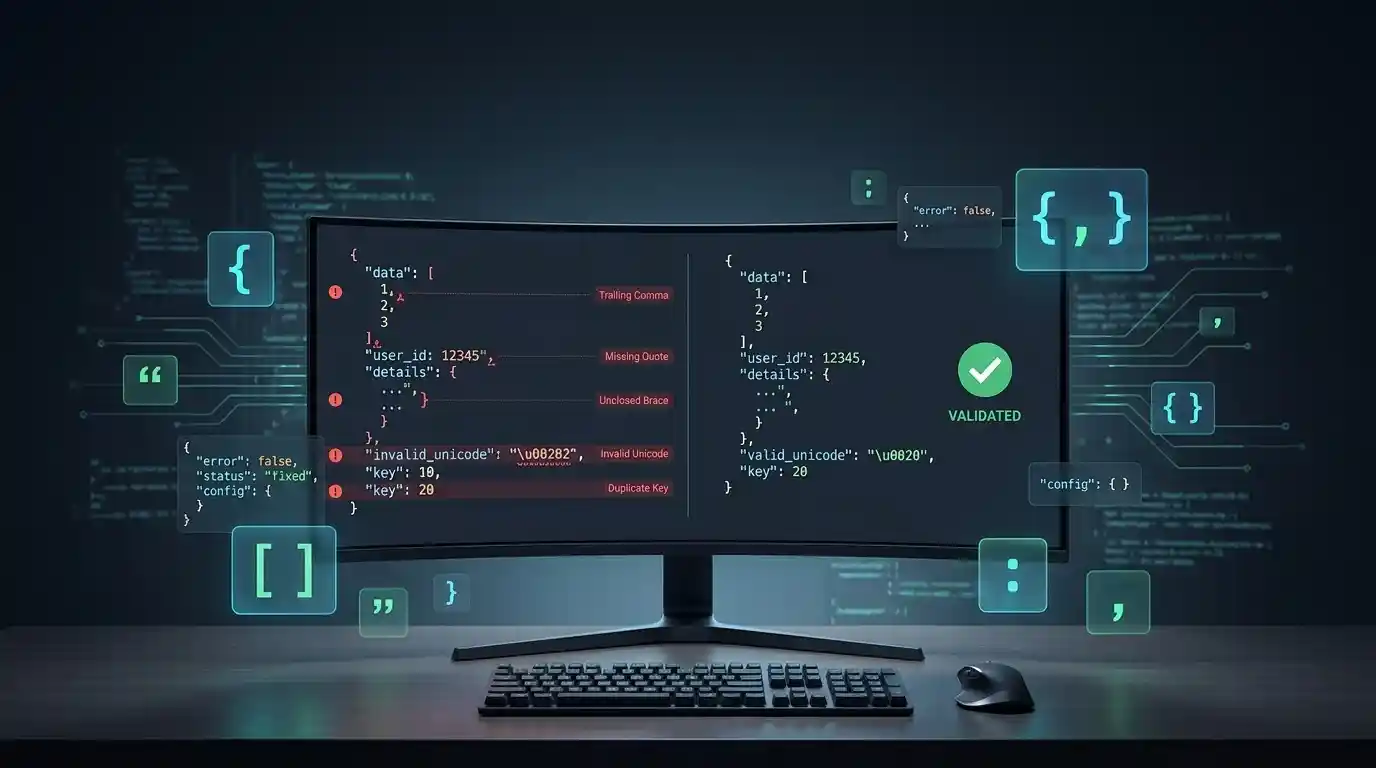
Quick Diagnostic Reference Table
If your build, API request, or data ingestion pipeline just threw a JSON syntax exception, use this comprehensive reference table to find the matching fix:
| Error Symptom / Pattern | Common Parser Error Message | Root Cause |
|---|---|---|
| Trailing Comma | Unexpected token } in JSON at position... |
A comma left at the end of the final item in an object or array |
| Single Quotes | Unexpected token ' in JSON at position... |
Using single quotes instead of mandatory double quotes |
| Unquoted Keys | Unexpected token a in JSON at position... |
Omitting double quotes around object property names |
| Comments | Unexpected token / in JSON at position... |
Adding // or /* */ notes inside standard JSON files |
| Unescaped Quotes/Newlines | Unexpected token... / SyntaxError |
Raw control characters or unescaped quotes inside strings |
| Truncated Input | Unexpected end of JSON input |
Missing closing brackets, braces, or interrupted data streams |
| Unsupported Types | Serialization omission / TypeError | Passing undefined, functions, or invalid serialization values |
| Leading Zeros | Unexpected number in JSON at position... |
Writing numbers with forbidden leading zeros like 0123 |
| Invalid Unicode Escapes | Bad control character / Invalid unicode escape |
Malformed hexadecimal escape sequences failing \uXXXX rules |
| Duplicate Keys | Silent overwrite or parsing conflict | Repeating identical property keys within the same object scope |
1. Trailing Commas
In JavaScript object literals, trailing commas are completely legal. In standard JSON, they are strictly forbidden. Leaving a comma after the final key-value pair of an object or array triggers an Unexpected token } parsing failure.
Invalid JSON:
{
  "host": "localhost",
  "port": 3306,
  "debug": true,
}
Why it fails: The parser expects another key-value pair after the comma, but hits a closing curly brace instead.
Correct JSON:
{
  "host": "localhost",
  "port": 3306,
  "debug": true
}
2. Single Quotes Instead of Double Quotes
Developers who switch back and forth between writing code and writing data often slip into using single quotes for strings or object keys. JSON explicitly mandates double quotes, throwing an Unexpected token ' error when single quotes are encountered.
Invalid JSON:
{
  'status': 'active'
}
Why it fails: The JSON specification (RFC 8259) dictates that JSON strings must be enclosed in double quotation marks, including object property names.
Correct JSON:
{
  "status": "active"
}
3. Unquoted Property Keys
In JavaScript, object properties don’t need quotes if they follow standard identifier naming rules. In JSON, property names must always be wrapped in double quotes, or the parser will throw an Unexpected token error.
Invalid JSON:
{
  name: "Kingstools",
  version: 1.0
}
Why it fails: Standard parsers require explicit string boundaries on property keys before evaluating the colon separator.
Correct JSON:
{
  "name": "Kingstools",
  "version": 1.0
}
4. Embedded Comments (// or /* */)
Configuration formats like JSON5, YAML, or TypeScript support inline and block comments. Standard JSON has no comment specification. If you add notes, parsers encounter the forward slash and throw an Unexpected token / error.
Invalid JSON:
{
  // Database configuration
  "timeout": 5000
}
Why it fails: Forward slashes are not valid token starters at the root or property level in core JSON data.
Correct JSON:
{
  "timeout": 5000
}
5. Unescaped Control Characters and Special Quotes
If a string value contains a literal line break, a tab character, or an unescaped double quote inside it, the parser loses its place and misinterprets the syntax boundaries.
Invalid JSON:
{
  "message": "User said "Hello" and left."
}
Why it fails: The internal unescaped quotes prematurely close the string value token from the parser’s perspective.
Correct JSON:
{
  "message": "User said \"Hello\" and left."
}
6. Missing Closing Brackets or Braces
In large, deeply nested JSON files, it is remarkably easy to mismatch a closing curly brace (}) or square bracket (]). This triggers an Unexpected end of JSON input exception.
Invalid JSON:
{
  "data": {
    "items": [1, 2, 3]
  }
Why it fails: The input stream terminates before all open structural scopes are closed.
Correct JSON:
{
  "data": {
    "items": [1, 2, 3]
  }
}
The Fix: Append the missing closing curly brace, or test your structure using a JSON formatter and validator to quickly expose structural imbalances.
7. Unsupported Data Types (NaN, undefined, Functions)
Because JSON is a language-independent interchange format, it doesn’t understand JavaScript-specific constructs like undefined, functions, or symbol declarations. Note that while JavaScript’s native JSON.stringify() safely converts NaN and Infinity into null when they appear as object or array values (and omits undefined or functions entirely), passing raw unquoted tokens or invalid types to a strict parser causes failures.
Invalid JSON:
{
  "callback": function() {},
  "value": undefined
}
Why it fails: Functions and undefined are executable code or language states, not storable data types in the JSON specification.
Correct JSON:
{
  "callback": null,
  "value": null
}
8. Leading Zeros on Numbers
JSON’s number grammar does not allow numbers to have leading zeros (such as 0123), triggering an Unexpected number parsing error.
Invalid JSON:
{
  "code": 0123
}
Why it fails: The number production rules in RFC 8259 explicitly prohibit non-zero numbers from starting with a zero digit.
Correct JSON:
{
  "code": 123
}
The Fix: Remove unnecessary leading zeros, or wrap the value in double quotes to treat it as a string if the leading zero is intentionally required (like a postal code or ID prefix).
9. Invalid Escaped Unicode Sequences
Unicode escape sequences represent specific Unicode code points within string data. They must strictly follow the exact four-digit hexadecimal format (\uXXXX). Writing sequences with fewer digits, such as \u123, fails structural evaluation.
Invalid JSON:
{
  "symbol": "\u123"
}
Why it fails: The parser expects precisely four hex characters following the \u prefix to resolve the code point.
Correct JSON:
{
  "symbol": "\u0123"
}
10. Duplicate Object Keys
RFC 8259 states that object names SHOULD be unique to ensure maximum portability and predictable behavior across different parsers. While some lenient parsers might silently overwrite earlier values with later ones, others throw exceptions or handle state inconsistently.
Invalid/Ambiguous JSON:
{
  "timeout": 1000,
  "timeout": 5000
}
Why it fails: Interoperability breaks down because different parsing implementations handle key collisions in conflicting ways.
Correct JSON:
{
  "timeout": 5000
}
The Fix: Audit your data generation logic to ensure keys are distinct across every object scope.
How to Prevent JSON Errors in Production
Chasing down syntax errors manually is a waste of engineering time. Protect your systems by adopting these best practices:
- Never write JSON by hand: Always rely on built-in serializers like
JSON.stringify()orjson_encode(). - Automate validation: Run automated checks in your CI/CD pipelines.
Conclusion
JSON’s strict syntax rules guarantee that it can be parsed by virtually every programming language, but that same strictness leaves zero margin for human error during development. By understanding these 10 common pitfalls and regularly passing your payloads through a robust JSON formatter and validator, you can immediately spot structural issues, fix syntax mistakes, and keep your application deployments running smoothly.
11 Comments