
How to Convert JSON to Excel: Handling Tables, Arrays, and Nested Data
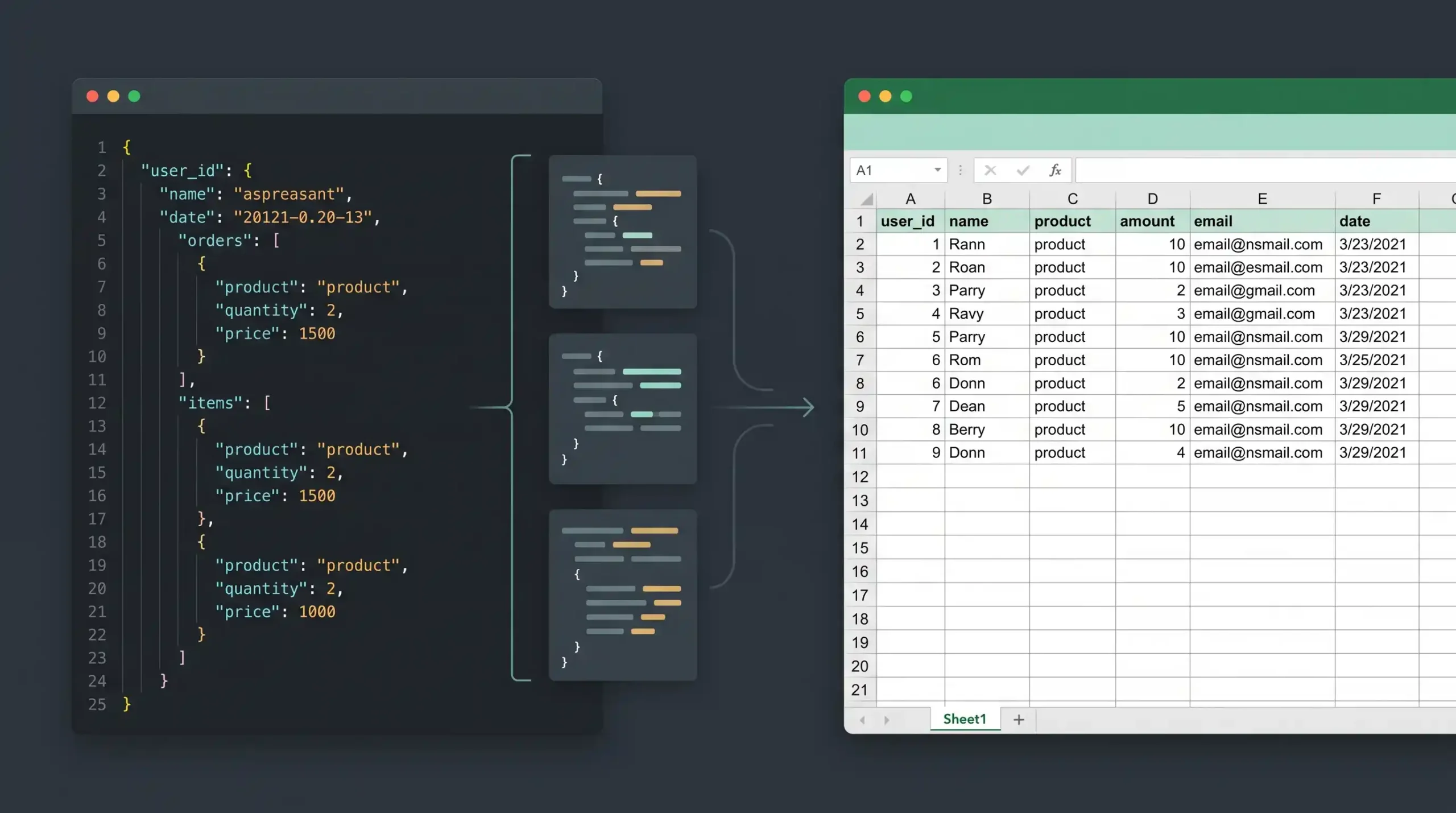
JSON (JavaScript Object Notation) is the standard format for web APIs and data exchange, while Microsoft Excel remains the default tool for business reporting and data analysis. Bridging the gap between the two is a common requirement for developers, data analysts, and site managers.
Moving data from a JSON file into an Excel spreadsheet (.xlsx or .csv) sounds straightforward until you encounter nested objects and multi-level arrays. Excel relies on a flat, two-dimensional grid of rows and columns, whereas JSON is hierarchical and multi-dimensional.
This guide covers practical methods to convert JSON to Excel, ranging from built-in spreadsheet tools to programmatic solutions using Python and JavaScript, with a specific focus on handling complex nested data.
The Core Challenge: Flat Grids vs. Nested Hierarchies
Before choosing a conversion method, it helps to understand the structure of your JSON file.
Flat JSON consists of simple key-value pairs where the values are strings, numbers, or booleans. This translates perfectly to Excel: keys become column headers, and values become row entries.
If the source contains malformed JSON, Excel, pandas, or a JavaScript parser may fail before the conversion even begins.
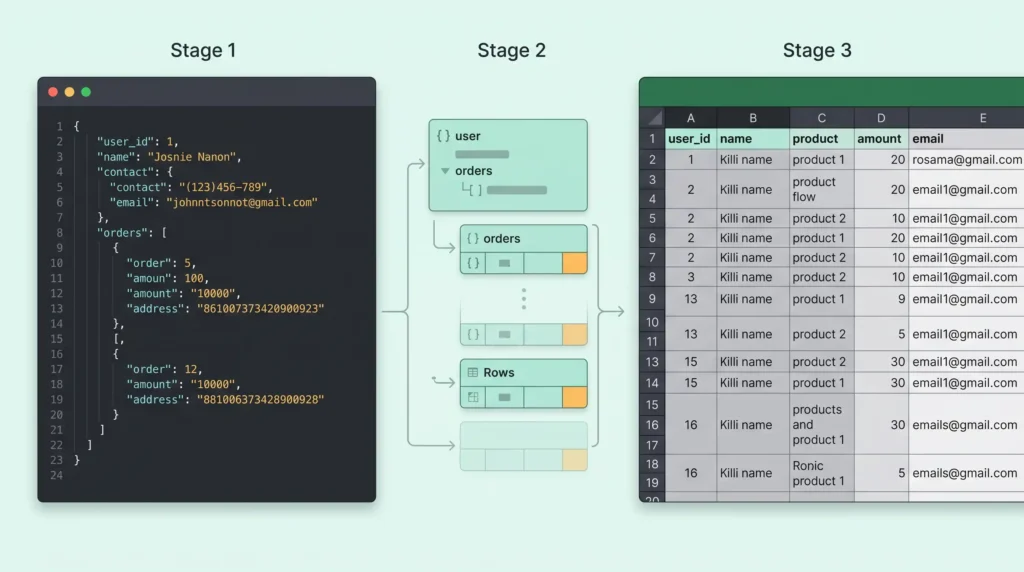
Nested JSON contains arrays or objects within objects. For example, a JSON file of user data might include an array of multiple order records for a single user. When converting this to Excel, you have to decide how to handle the nested data. You generally have three options:
- Flattening: Combining nested keys into a single column header (e.g.,
user_address_city). - Duplicating Rows: Creating a new row for every item in an array while duplicating the parent data.
- Extraction: Storing nested arrays in a completely separate worksheet and linking them with an ID.
Here is how to tackle the conversion based on your technical comfort level and the size of your dataset.
Method 1: Using Excel’s Built-In Power Query (No-Code)
If you have Microsoft Excel installed, you do not need third-party tools to import JSON. Excel’s Power Query feature is highly capable of parsing JSON files, including expanding nested lists and records.
Step-by-Step Guide
- Open a blank Excel workbook.
- Navigate to the Data tab on the top ribbon.
- Click Get Data > From File > From JSON.
- Locate and select your
.jsonfile. - The Power Query Editor will open.
Handling Nested Data in Power Query: If your JSON file contains nested records, Power Query will display the word Record or List in the table cells instead of actual values.
- To extract the data, click the Expand icon (two diverging arrows) at the top right of the column header.
- Choose the specific fields you want to extract as new columns.
- Uncheck “Use original column name as prefix” to keep your column headers clean.
- If you have a
List(an array), you will first click Expand to New Rows, which creates a new row for each item in the array, and then expand the resulting records into columns.
Once the data looks correct in the preview, click Close & Load in the top left corner. The parsed JSON will populate your Excel sheet as a formatted table.
If you need to work with JSON programmatically before exporting it, see our guide on parsing and validating JSON in Python.
Method 2: Using Python and Pandas (For Large Datasets)
For repetitive tasks or massive datasets that cause Excel to freeze, Python is often the most efficient route. The pandas library handles data manipulation well, though nested JSON requires a specific function called json_normalize.
1. Converting Flat JSON
If your data is mostly flat, the read_json and to_excel functions are usually sufficient.
Python
import pandas as pd

# Load the JSON file
df = pd.read_json('data.json')

# Export directly to Excel
df.to_excel('output.xlsx', index=False)
2. Flattening Nested JSON
When your JSON has nested dictionaries or arrays, standard imports will result in cells containing raw Python dictionaries. To fix this, use pd.json_normalize().
Python
import json
import pandas as pd

# Load the JSON data
with open('nested_data.json') as f:
    data = json.load(f)

# Normalize the data
# The 'record_path' tells pandas where the nested array is located
# The 'meta' argument keeps the parent fields you want to retain
df = pd.json_normalize(
    data,
    record_path=['orders'],
    meta=['user_id', 'user_name', ['contact_info', 'email']],
    errors='ignore'
)

# Export to Excel
df.to_excel('flattened_output.xlsx', index=False)
This script traverses the JSON tree, extracting the orders array into separate rows while retaining the parent user_id and nested email address.
(Note: To write to an .xlsx file using pandas, you will need the openpyxl dependency installed via pip).
Method 3: Using JavaScript and Node.js
If you are already working within a JavaScript environment, you can convert JSON to Excel format on the server side using the xlsx (SheetJS) library.
This is particularly useful if you are building an internal dashboard or a web utility and need to generate downloadable Excel reports directly from a database response.
JavaScript
const fs = require('fs');
const XLSX = require('xlsx');

// Read and parse the JSON file
const rawData = fs.readFileSync('data.json');
const jsonData = JSON.parse(rawData);

// Create a new workbook and add the JSON data as a worksheet
const worksheet = XLSX.utils.json_to_sheet(jsonData);
const workbook = XLSX.utils.book_new();
XLSX.utils.book_append_sheet(workbook, worksheet, "Sheet1");

// Write the file
XLSX.writeFile(workbook, 'output.xlsx');
Similar to the Python approach, XLSX.utils.json_to_sheet works best on flat arrays of objects. If your JSON is deeply nested, you will need to write a custom mapping function to flatten the object into key-value pairs before passing it to SheetJS.
Method 4: Online JSON to Excel Converters
If you only need to run a conversion once and do not want to write code or navigate Power Query, web-based formatting tools are practical alternatives.
When pasting data into a browser tool:
- Check the output formatting: Good converters give you a preview of how nested objects are handled.
- Consider data privacy: Avoid pasting JSON files that contain API keys, passwords, PII (Personally Identifiable Information), or sensitive financial data into random third-party converters. If privacy is a concern, stick to offline methods like Power Query or local scripts.
Best Practices for Data Structuring
When preparing a JSON payload specifically for Excel export, keeping a few structural rules in mind will reduce conversion errors later on.
- Standardize Keys: Ensure every object in your JSON array has the exact same keys. If Object A has a
phone_numberkey but Object B completely omits it, some conversion methods might shift column alignment or drop the column entirely. Usenullvalues to maintain consistent schemas. - Pre-Flatten Where Possible: If you control the API endpoint or database query generating the JSON, consider formatting the output to be flat before it leaves the server. Joining relational tables at the database level is often less resource-intensive than forcing a spreadsheet program to untangle nested JSON later.
- Limit Array Depth: Try to avoid nesting arrays more than two levels deep if the end goal is a CSV or XLSX file. Deeply nested data is better suited for document databases (like MongoDB) than relational grids.
Converting JSON to Excel is heavily dependent on the shape of your data. For simple key-value lists, any method works quickly. For complex APIs with multiple levels of nested records, spending five minutes setting up Power Query or writing a short Pandas script will yield much cleaner, more usable spreadsheet data.